Automations that start on their own, use your tools, and send to your inbox
Last updated: October 23, 2026
This week you can steer the Agent mid-task, get a full view of your attachments and work products alongside your chat, and kick off automations when a new record is created, with access to all of your connectors.
Turn client documents into a draft in your inbox
Automations can use any of your connected tools, including Google Drive, Dropbox, OneDrive, and Sharepoint. An automation can check a Drive folder each day for a new client, set up the project, upload and organize the documents, and run your evidence review.
The finished review lands directly in your inbox.
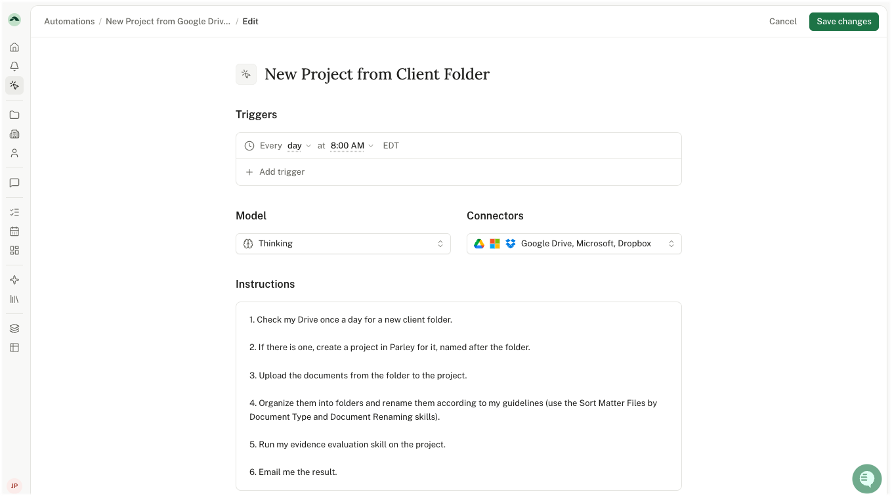
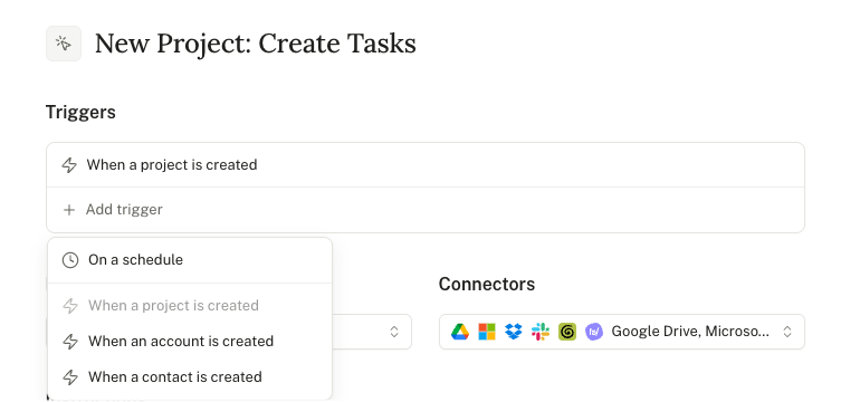
Kick-off automations the moment you receive a new client
Automations can now run whenever someone creates a project, account, or contact, in addition to running on a schedule or on demand.
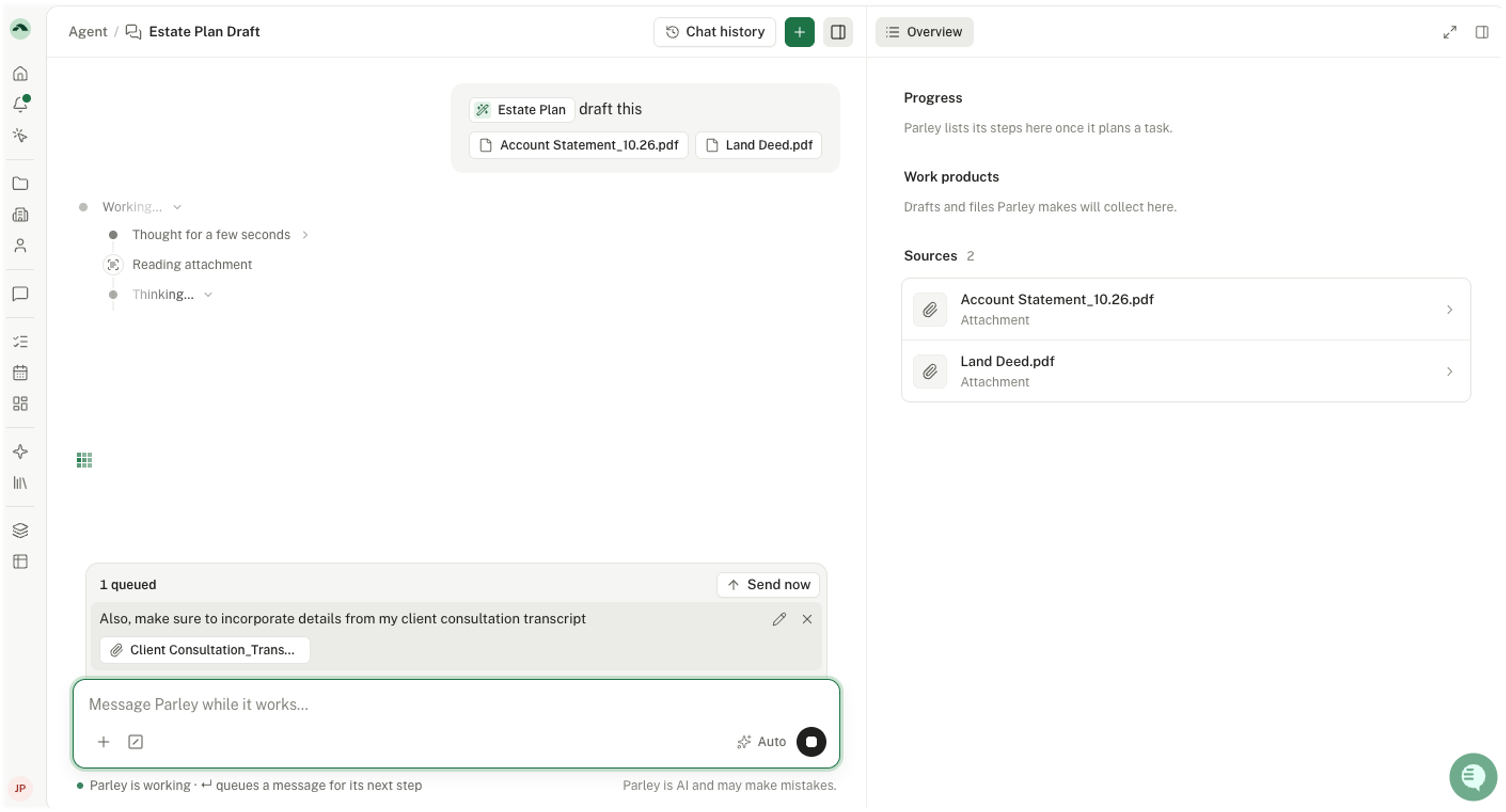
Redirect the Agent without waiting for it to finish
The chat now stays open while the Agent works so you can send follow-up messages and the Agent will answer in the same run.
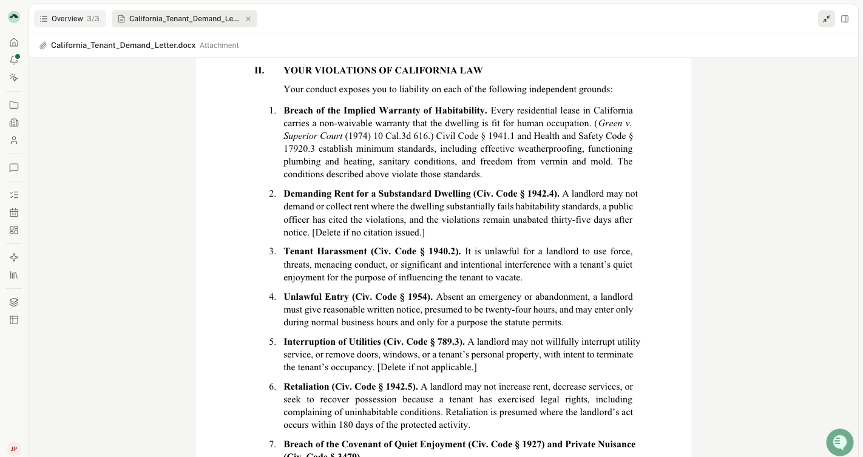
Keep your work in view while you chat
The new chat view lets you open your attachments or Parley's work product in a full-screen view when you want a closer look.
Additional improvements
Connect Egnyte to search your files and import them into Parley
Import and sync Google Sheets and Google Slides from Google Drive
The Agent can now hand pieces of a larger task to subagents that work in the background and report back, so long requests finish faster
Upload TIFF, BMP, legacy PowerPoint, ODT, RTF, WPD, and .eml files, and Parley converts them to PDF
Files on project, account, contact, and Library pages now open in the resizable side pane instead of a sheet that blocks Parley's functionality. Click to switch files, use the arrow keys to step through the list, and toggle full width to see PDFs at actual size
Pasting a long block of text into chat now turns it into a clickable "Pasted text" attachment that opens in the side panel
Click a skill badge in chat to open that skill in the side panel
The "+" in the chat header now starts a new chat with your current project still selected