Managing the Index in Parley Applications
Last updated: March 13, 2026
Parley now gives you full control over your exhibit index. You can label, merge, reorder, and manage documents independently from the structure of your draft.
Previously, Parley automatically ordered exhibits based on the order of sections and groups in the draft outline. With this update, the index is fully flexible, allowing you to organize exhibits however you prefer while keeping your draft structure unchanged.
Label Exhibits
Exhibit labels determine how documents are cited in your petition and how they appear in the exhibit packet.
Assign labels directly in the Label column of the Index table.
Examples of common labeling formats include:
A, B, C
1, 2, 3
A1, A2, B1
Changing a label will:
Change how the exhibit is cited in the brief
Change the order of exhibits in the packet
Changing a label will not:
Move the document between sections
Change the outline structure of the draft
This allows you to reorganize your packet freely without affecting how your petition is drafted.
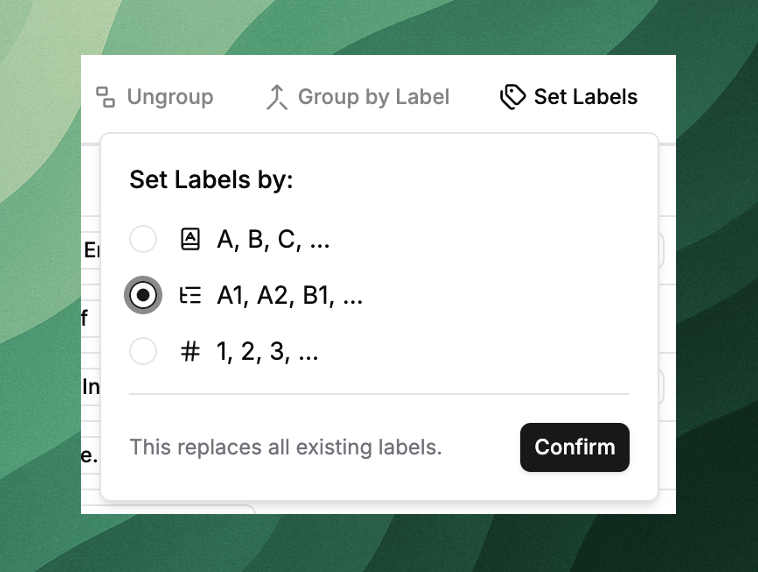
Merge Documents into a Single Exhibit
If multiple documents should appear under the same exhibit, you can merge them.
To merge documents:
Select the checkbox to the left of each document.
Click Group by Label.
Assign a shared exhibit label.
The selected documents will become one exhibit in the index and exhibit packet. You can edit the exhibit title to describe the grouped materials.

Leave Documents Uncited
You may want to use a document in drafting without citing it directly in the petition.
To leave a document uncited:
Simply leave the exhibit label blank.
The document will remain available in the application but will not appear as a cited exhibit.
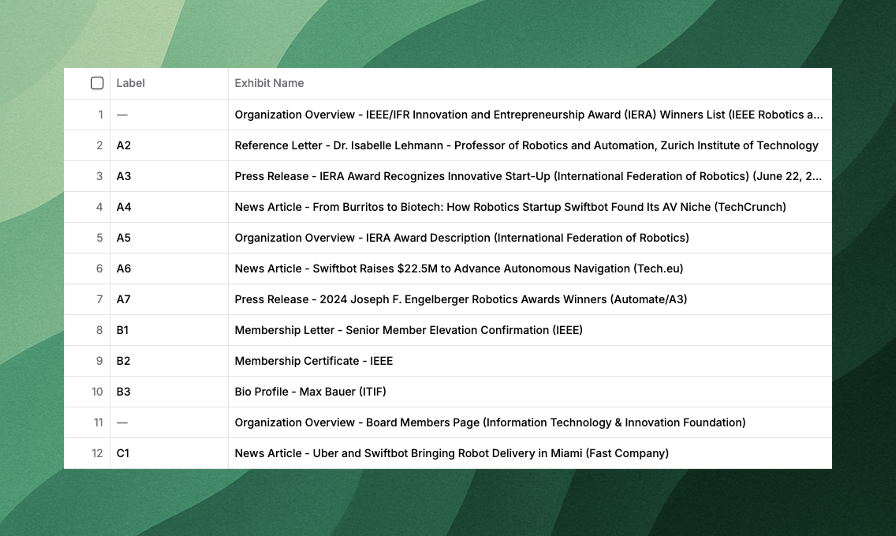
Reorder Exhibits
You can reorder exhibits at any time by changing the label.
For example:
Changing a label from B3 → A4 will move that document into the A section of your packet.
Labels do not automatically renumber other exhibits. To shift labels efficiently, you can:
Edit labels manually
Use the drag-to-increment feature described below
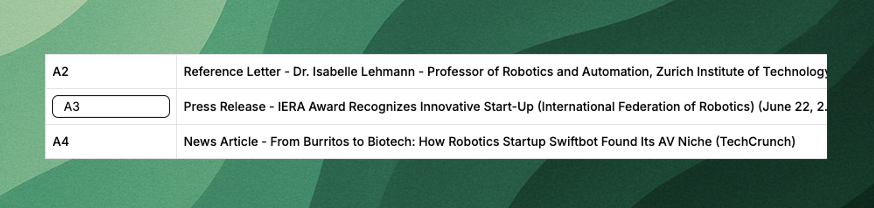
Drag to Automatically Increment Labels
You can quickly create sequential labels using the same functionality found in Excel or Google Sheets.
Enter a label in a cell (such as A1 or 1).
Select the cell.
Drag the blue handle in the bottom-right corner downward.
Parley will automatically increment the labels across the rows.
Examples:
A1 → A2 → A3
1 → 2 → 3
B1 → B2 → B3
This is the fastest way to label large sets of exhibits.
Upload Documents Directly to the Index
You can now upload documents directly to the Index table even if they are not used in the draft.
This is helpful when:
You already drafted the petition
You are assembling the exhibit packet afterward
You want to organize documents without linking them to draft sections
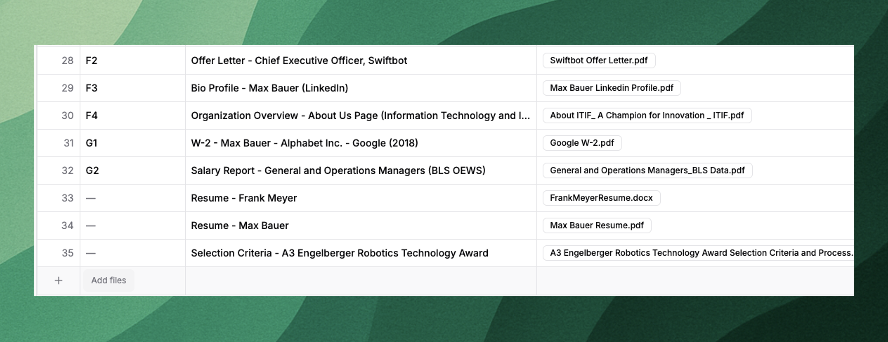
To upload documents:
Scroll to the bottom of the Index table.
Click Add Files.
Upload your documents.
The files will appear in the Index where they can be labeled, grouped, and organized.
If You Prefer Draft-Ordered Exhibits
Sort by Draft Order
Use the Sort by Draft Order option to display files according to the order of sections and groups in the Outline tab.
If you move sections in the Outline, this sort will update accordingly.
This view helps you see how exhibits will appear when cited in the draft.
Apply Labels Based on Draft Order
Once sorted, you can label exhibits sequentially according to that order.
For example:
A1 → A2 → A3 → B1 → B2
You can use the drag-to-increment feature to quickly generate the full label sequence.

What’s Coming Next
We’re continuing to expand how the Index works across Parley. Upcoming improvements include:
Agent and Word Add-In Integration
Upload files to the Index and allow Parley to automatically update exhibit citations across your petition when labels change.
Index Management from Projects
Create and manage exhibit packets directly from a Parley Project, even when drafting outside of a formal Parley application.