Use AI for any case type with Parley Projects | January Changelog
Last updated: February 3, 2026
Highlights from January 🤖
[New Product] Parley Projects. Use AI across any case type and across your entire workflow - researching, drafting, organizing, and assembling.
[New Product] Fill templates with AI in Microsoft Word. Apply coordinated, mass edits to any legal brief directly inside Word with Track Changes.
[New Product] Pull SOC codes and prevailing wages in Tables. Instantly identify SOC classifications and OFLC wage data across all the clients you’re helping with this cap season.
[New Product] Order, Assemble, and Generate PDF exhibit packets in Tables. Use Tables to instantly organize your evidence by exhibit, then export to PDF.
Draft source of funds analyses. Use Tables and the Agent to organize financial records and generate E-2 and EB-5 source of funds narratives.
Use AI for any case type with Parley Projects
Parley’s application level-workflows are premium ways to get your work done efficiently.
But what about the work and cases that fall outside or those workflows?
Now, with Parley Projects, you can use AI across all of your work -- Research, Drafting, Organizing and Assembling.
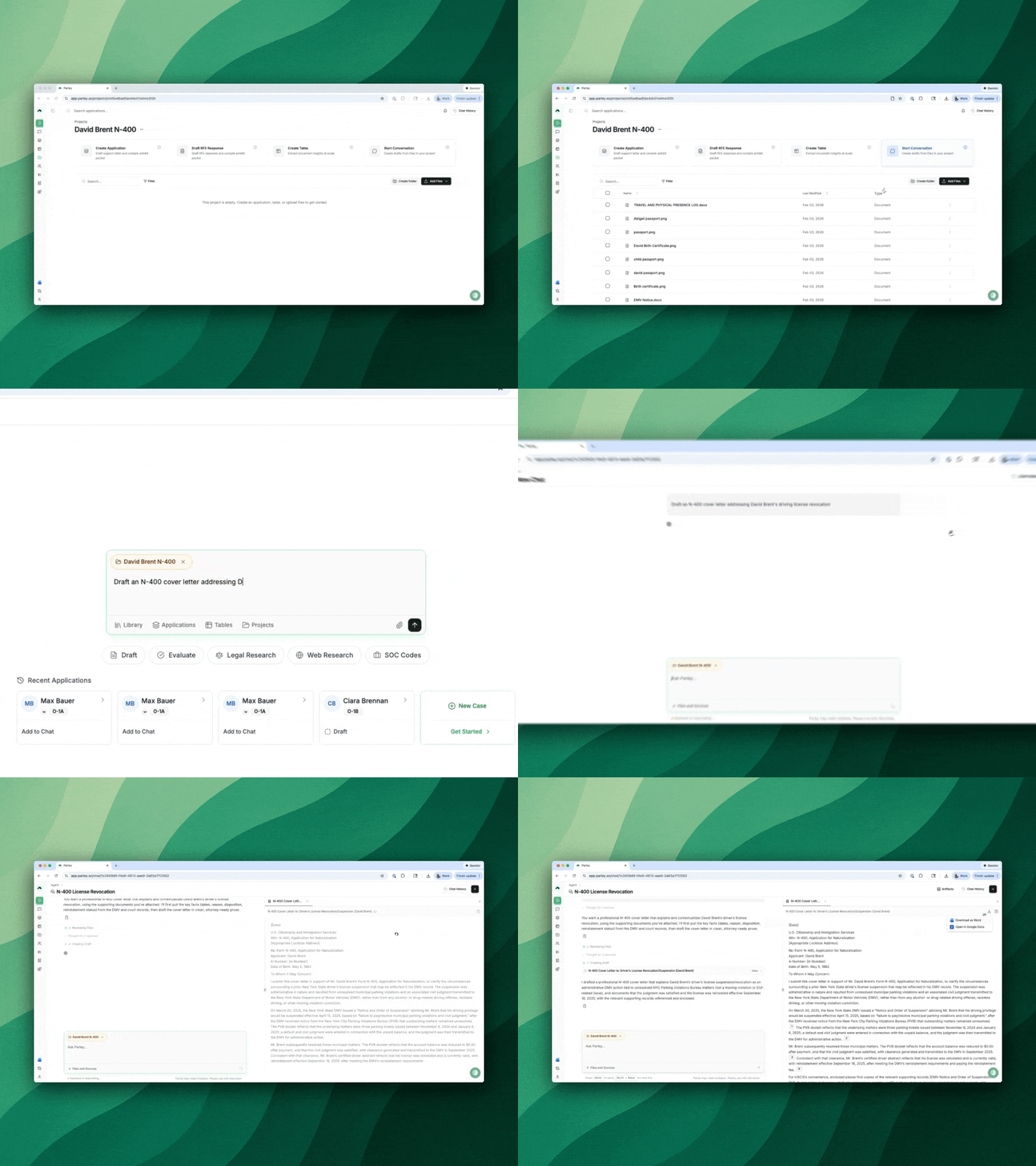
Projects are simply folders where you can store and organize client materials, then the Parley Agent can use those materials to generate any kind of brief.
Find projects on the left-hand side panel and select “Create Project”
Name your project and begin uploading files
What kind of work do you want to accomplish?
Draft a legal brief.
Select your project inside the Parley agent, provide a prompt and start drafting!
Assemble exhibit packet.
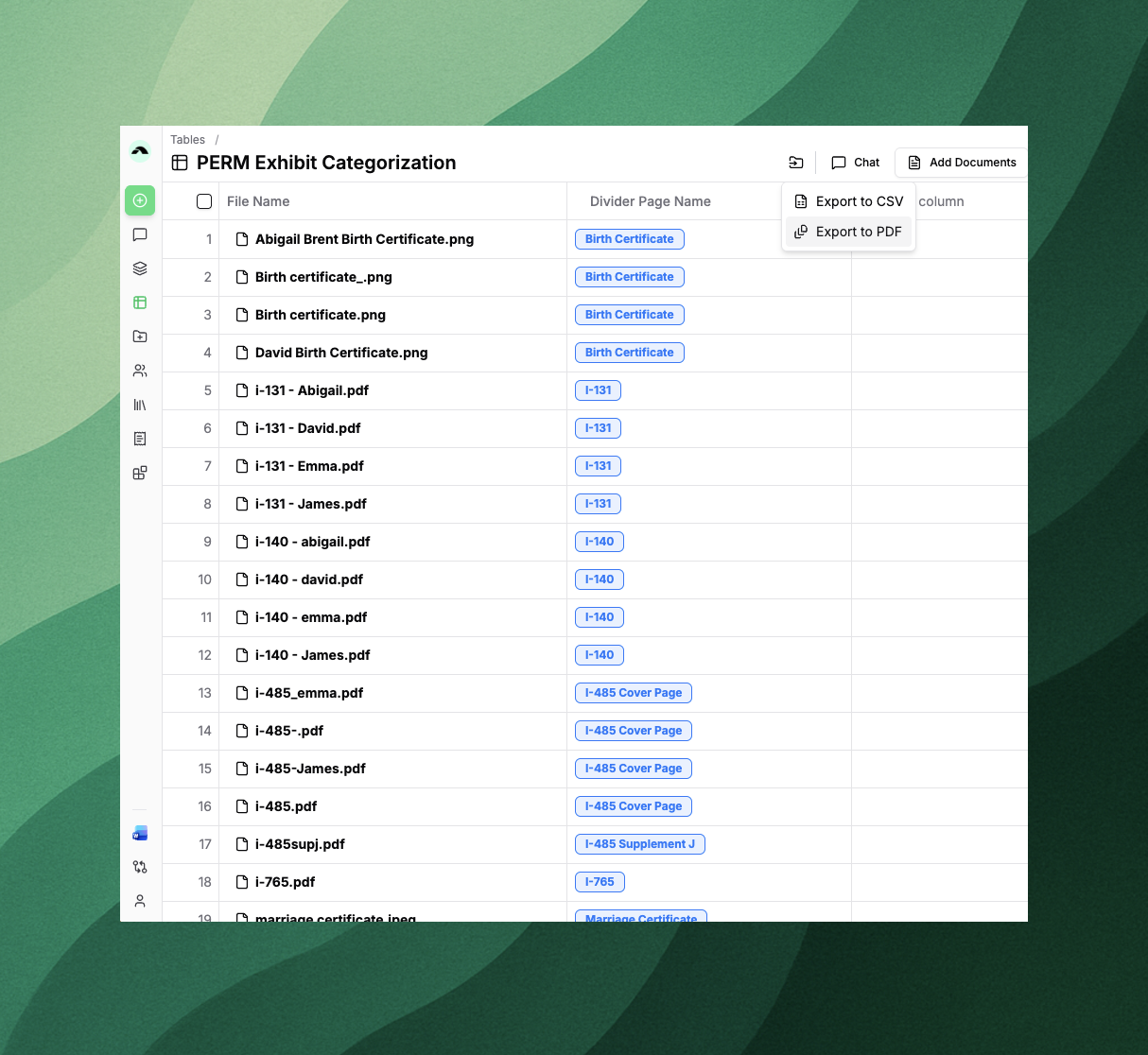
Create a Table. Select Add Documents → Open Projects. Categorize your evidence by exhibit with a single-select column. Export to PDF.
Analyze client evidence.
Create a Table. Select Add Documents → Open Projects. Extract any detail across your document set. Find relevant SOC Codes and Wage Data.
How is this different from ChatGPT?
Parley automatically grounds its writing in relevant materials from the USCIS policy manual and CFR.
Parley can leverage your firm's knowledge base dynamically while it drafts from new materials.
Parley creates work products where you want, like in Microsoft Word or PDF. Download the Microsoft Word Add-In to use AI side-by-side with any work.
What’s the difference between creating a Project and adding to my Library?
Create a Project to store files related to a case or brief you’re working on and use the Project in the Parley Agent to generate a draft.
Upload to the Library to store your firm’s knowledge base, templates, prior filings, and legal resources. You can search over this knowledge base in the Parley Agent.
Adapt any brief with new evidence, directly in Microsoft Word
Instead of editing paragraph by paragraph, ask Parley to propose coordinated changes across your document — then review and apply them inline.
Parley’s edits preserve formatting, respect your document structure, and can be applied with Track Changes so you know exactly what’s changed.
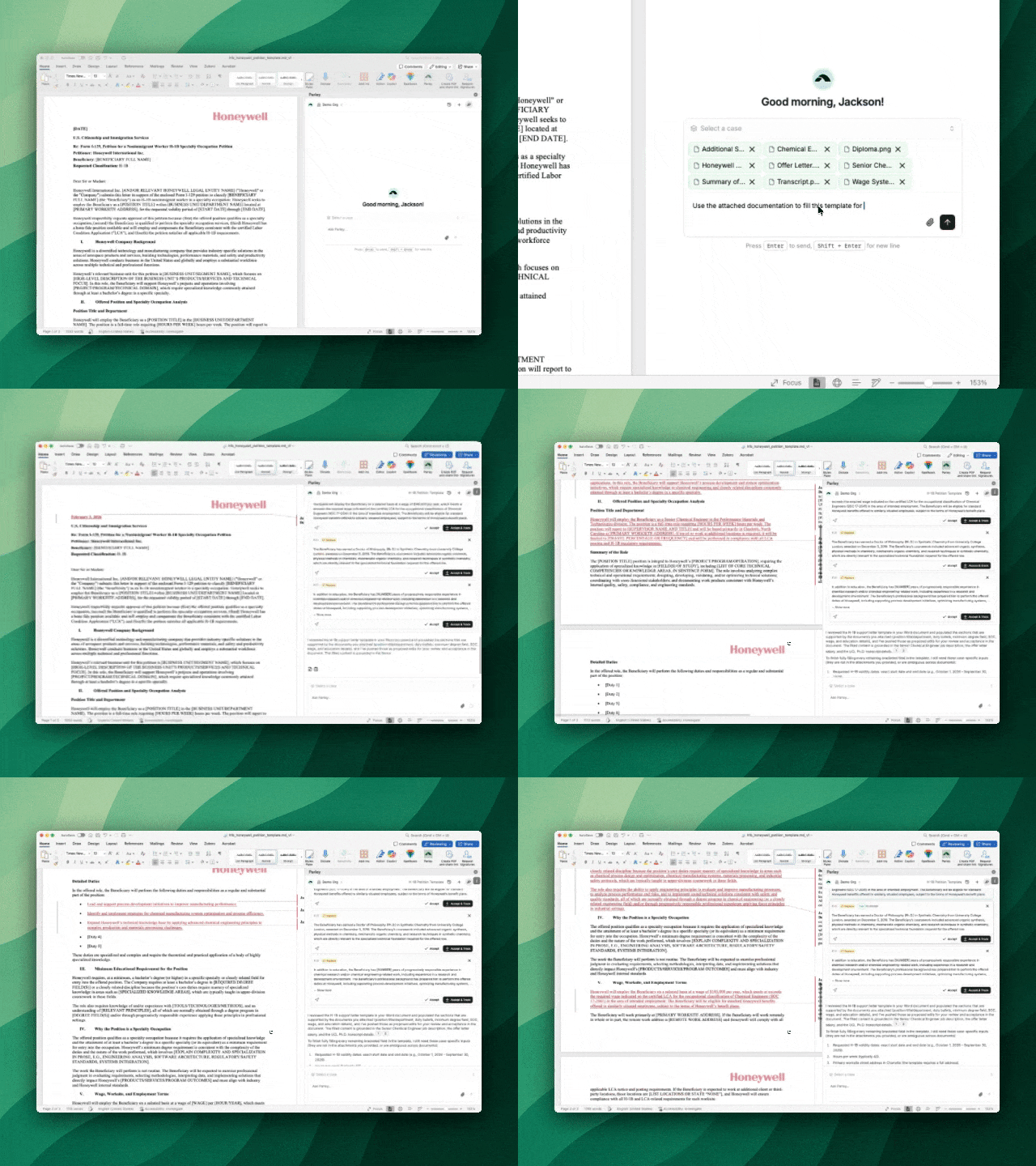
Try opening a template or previous filing in Microsoft Word, dragging in your new client’s materials, then asking the Agent to apply edits directly to your draft.
How to install the Parley x Microsoft Word Add-In:
Follow this link → Parley for Word or
Open Microsoft Word (desktop or web)
Go to Insert → Get Add-ins
Search for Parley
Click Get it now next to Parley
Sign in with your Parley account
Once installed, the Parley panel appears inside Microsoft Word and is available in any document, even if it’s unrelated to a case in Parley.
Identify SOC codes and prevailing wages across all your clients for this cap season
Use Parley Tables to search SOC codes and prevailing wage data directly in Parley.
Upload intake forms or questionnaires into the Parley Table, set the column to search for SOC Codes and the OFLC wage database, then Parley will instantly pull that data into a spreadsheet for every applicant.
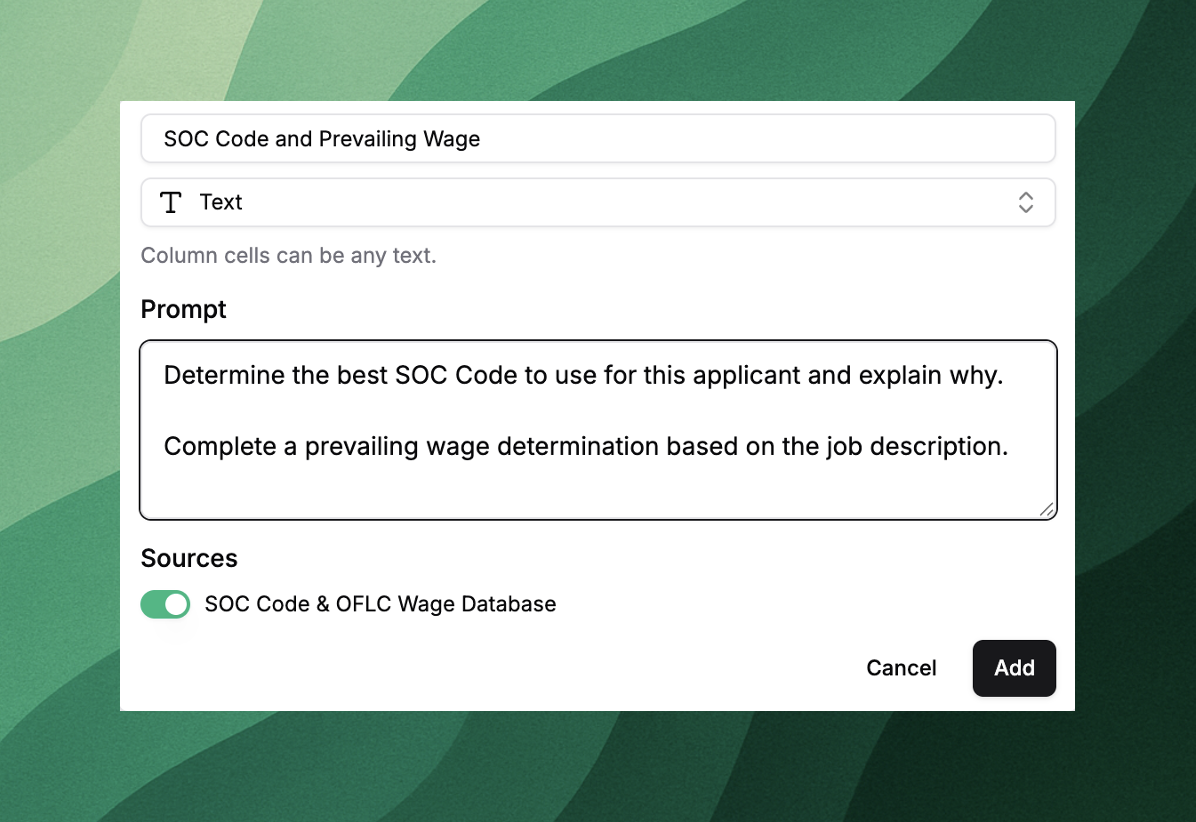
Move your Table to Google Sheets or Excel by selecting the rows you want to download, and clicking export.
Order, Assemble, and PDF exhibit packets in Tables
Use Tables to instantly organize your evidence by exhibit, then export to PDF.
Set a column to single-select with your exhibit divider pages as the list of options.
Ask Parley to categorize your client's evidence by exhibit type.
Export to PDF.
Download your exhibit packet.
Use new Tables Templates to review filings and draft source of funds analyses
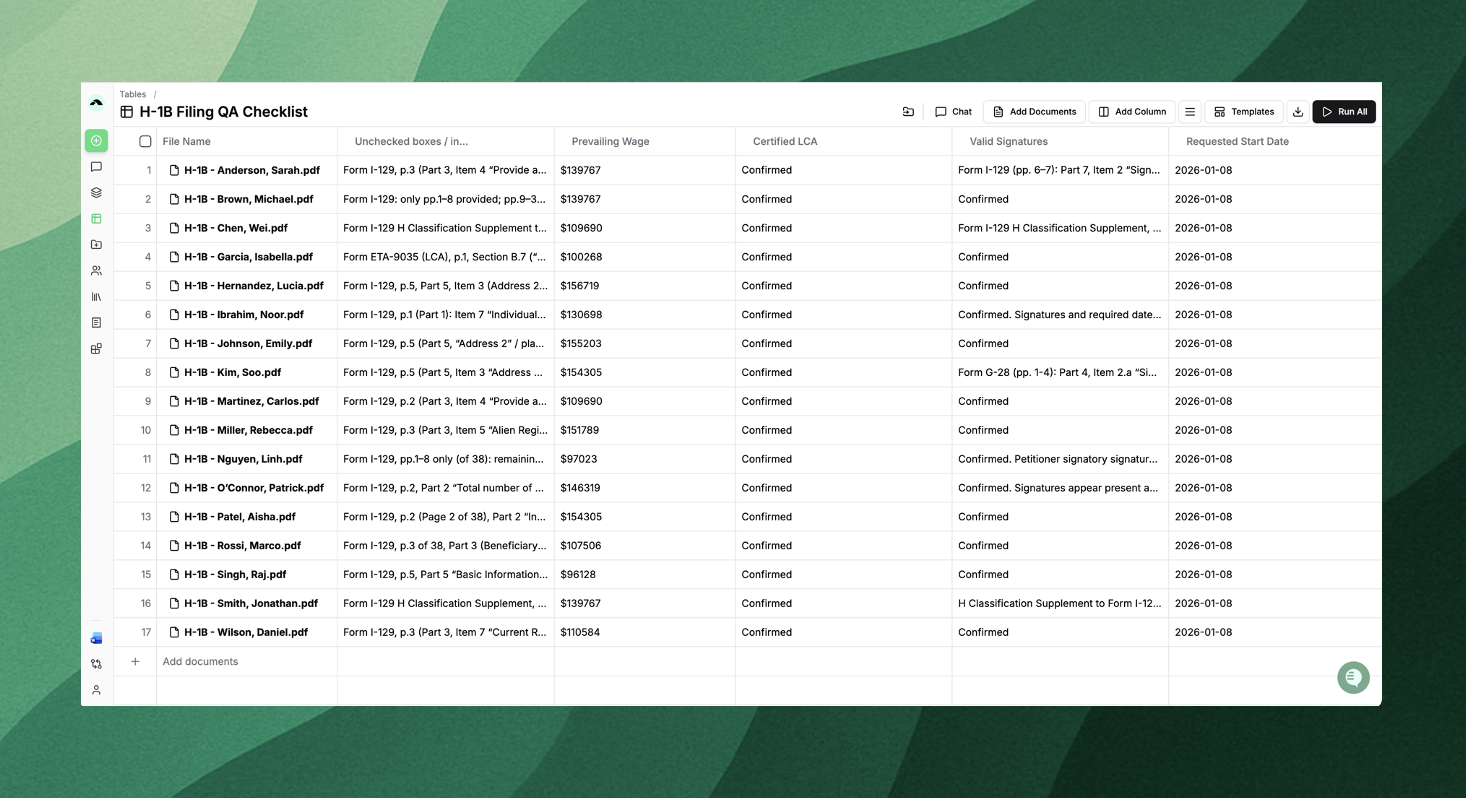
Complete detailed reviews of packets and filings before submitting to the USCIS
Upload your packets to a Table and try out the new H-1B Filing QA Checklist template to quickly review draft filings before submission.
Instantly identify detailed information, such as:
“Are any boxes or fields left blank, contradictory, or illegible? Are any answers inconsistent with any other responses throughout the I-129?”
“Are all required form signatures for the I-129 and H-supplement present and valid?”
“Are all required USCIS and statutory fees correct and properly documented?”
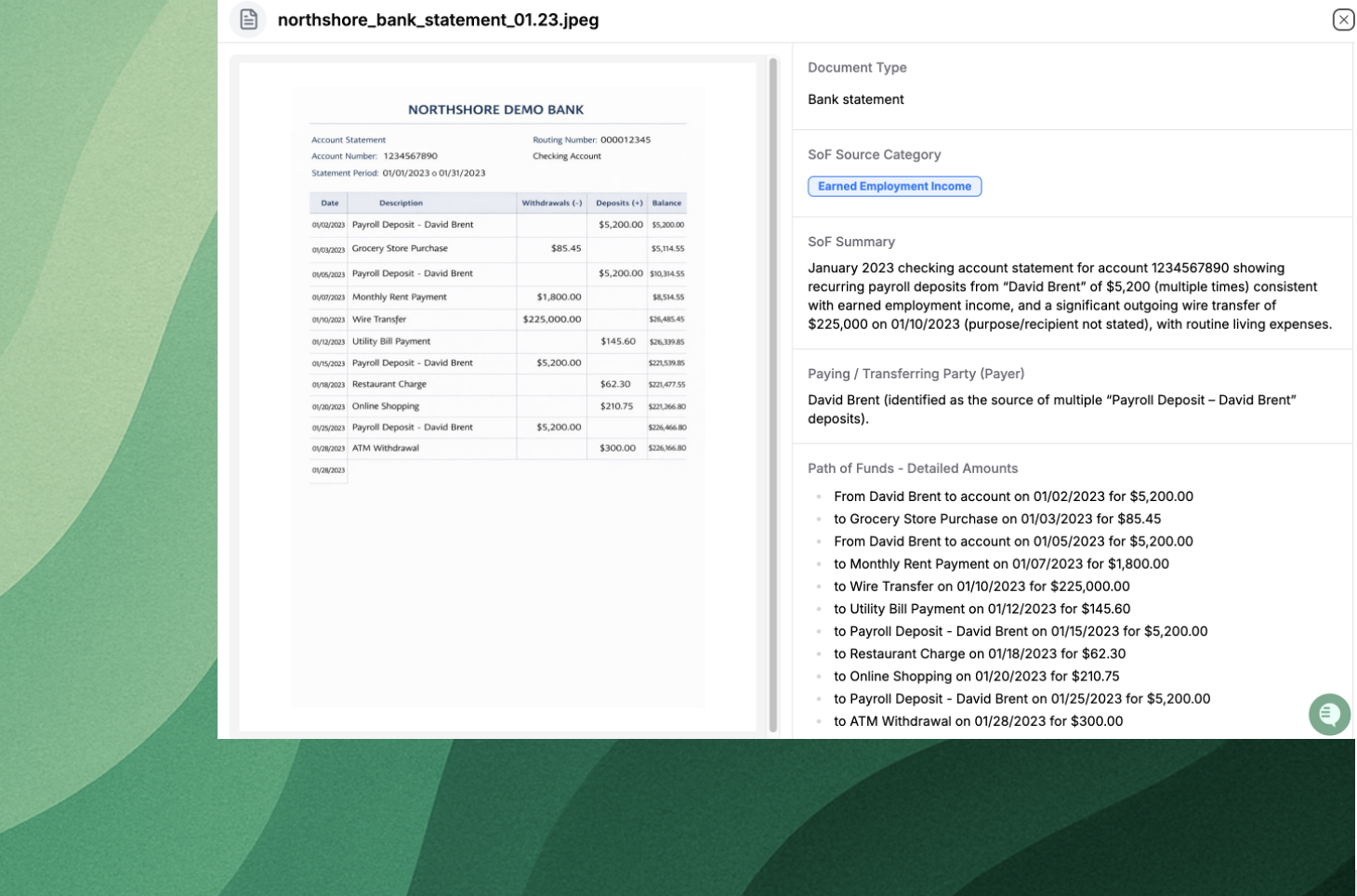
Draft E-2 and EB-5 source of funds analyses
Use the Parley Table and Agent to draft a source of funds analysis with all of your client's itemized statements in context.
Create a Table and load the Source of Funds Analysis Template.
Upload all of your client's bank statements and receipts.
Hit "Run All" on your Table, and let Parley organize the funds by source, payer, amount, and date.
Open the Parley Agent in the Table, prompt the agent with the sources you want to focus on (e.g., gift, inheritance, income, sale proceeds) and tell Parley to identify the Path of Funds across all of your uploaded evidence.
If you want the Agent to draft the source of funds in your style, attach an example of a previous analysis you've written.
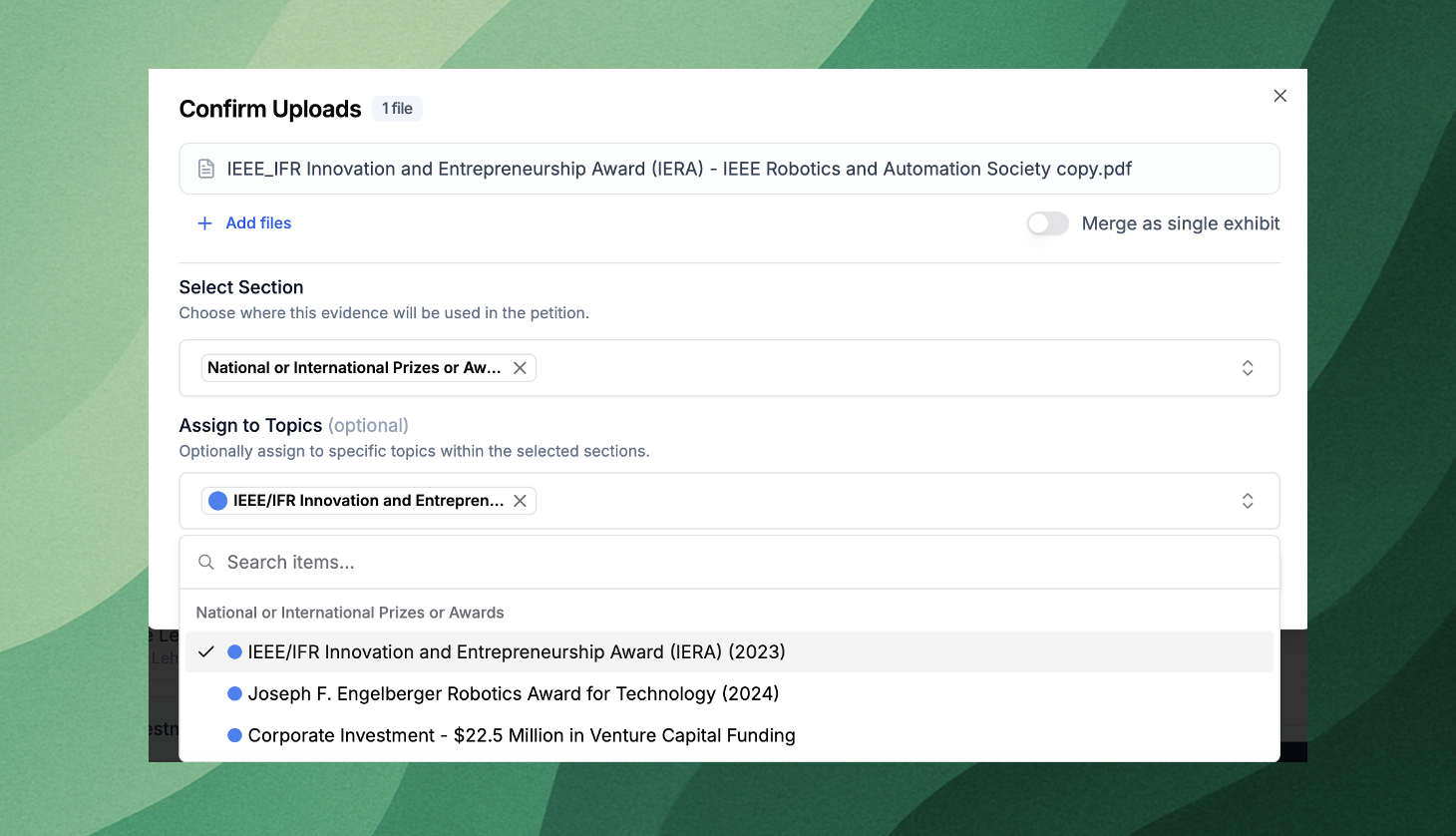
Organize your exhibits and index before uploading evidence to Parley
If you already have evidence organized into sub-topics, (e.g., specific awards, publications, or judging events) you can now set those as topics in the Parley overview and upload exhibits there directly.
This lets you retain your evidence organization and get to your final index and exhibit packet even quicker.
Lots of Improvements!
Get to your work quicker through cleaner dashboards and improved filtering and sorting for tables, applications, projects, and the library.
Original file names are now listed alongside Parley's smart exhibit names so you can easily track back work in Parley to your case management or file drive.
Chat with the Agent with smoother streaming and better context handling across large documents sets.
Review USCIS case statuses for your clients, now organized by read and unread notifications.
Add a Project and a Library folder to the Agent at the same time to draft briefs in your style and structure.
Add files from your Projects directly to a Table, Application and vice versa. This is especially helpful for using Tables as a case evaluation tool before creating an application.